How to Use TempSend
Discover practical ways to use TempSend for secure, temporary file sharing. Each guide includes step-by-step instructions to help you transfer files quickly and privately.
📱 Transfer Photos & Videos from iPhone to Android
Easily transfer photos, videos, and files between iPhone and Android devices without cables, third-party apps, or cloud services. Perfect for switching phones or sharing media with friends.
📄 Quick Document Sharing Between Devices
Share documents, PDFs, or presentations between your laptop and phone instantly. Perfect for reviewing documents on mobile, printing from another device, or quick file transfers.
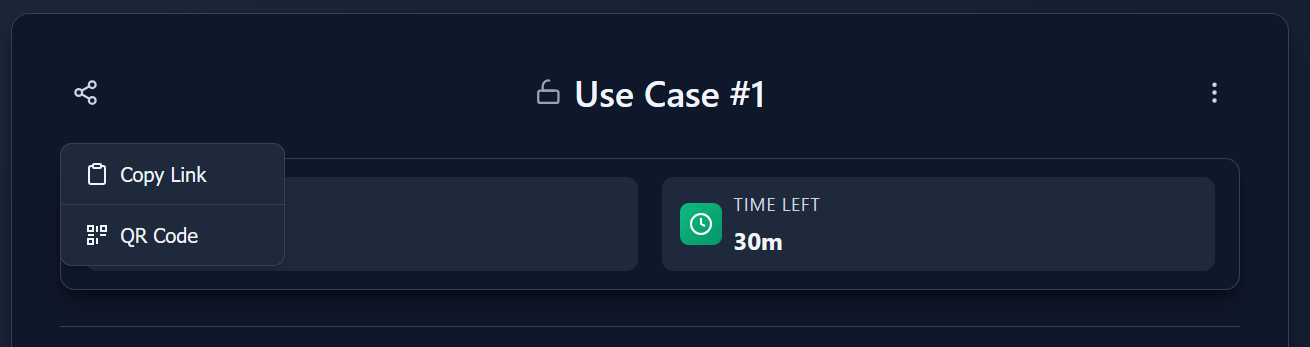
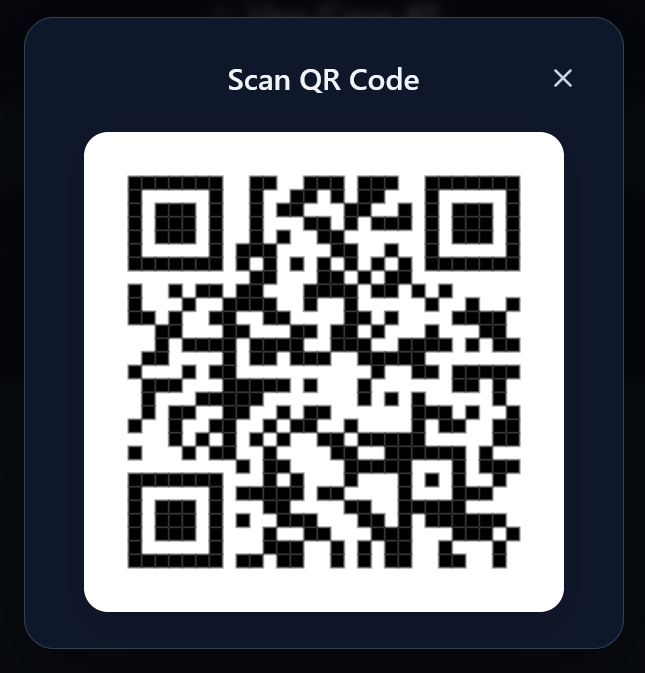
Option B: Click "Copy Link" in the share menu and send it to yourself via email, message, or any other method.
👥 Share Files with a Team or Group
Share multiple files with colleagues, classmates, or friends using a single link. Perfect for group projects, event photos, or collaborative work.
📧 Send Large Files That Exceed Email Limits
Email providers typically limit attachments to 25MB or less. Use TempSend to share larger files like videos, high-resolution photos, design files, or software packages.
💻 Temporary File Storage for Multi-Device Work
Working across multiple devices? Use TempSend as temporary storage to access files from your laptop, phone, tablet, or work computer without permanent cloud storage.
General Tips for Using TempSend
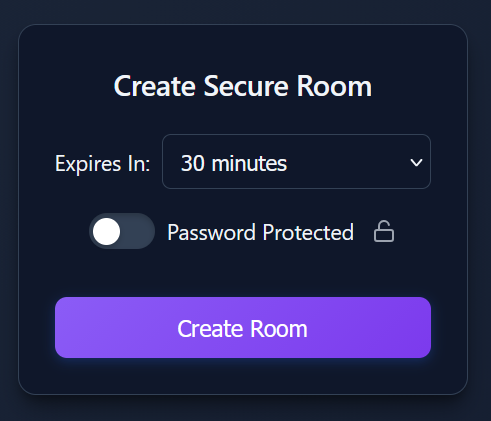
For sharing with friends: 30 minutes - 1 hour
For team collaboration: 6-12 hours
Files automatically delete after expiry, so choose enough time for recipients to download.
Top-right: Room settings (⚙️) for managing room options
Top-center: Click the room title to rename your room
Ready to Start Sharing?
Try TempSend now - no account required, completely free, and fully encrypted.
Create Your First Room